
Remove DLSS 5 Swapper and Restore Your Games
Remove DLSS 5 Swapper in the right order: restore each modified game, verify its original behavior, then uninstall the app without deleting unrelated mods.
Why uninstalling is not enough
The desktop application and its installed game components live in different places. The developer explicitly states that uninstalling the application does not touch game folders. Version 2.2.7 added a reminder to restore games first. See the release notes and maintainer’s response in issue 266.
Deleting the portable executable also leaves game components in place. If ReShade still appears after removing Swapper, restore the modified game files using the steps below.
Restore each game
- List the games and emulators you modified through Swapper. Preserve their installation records and
_DLSS5_Backupdirectories. - Close the target game and processes that are using its files.
- Open its entry in Swapper and choose Restore originals.
- Read the completion result. If a file is locked or missing, keep the error and resolve that specific problem before treating restoration as finished.
- Launch the game through its normal launcher with the original renderer. Check the menu, a known scene, and whether the injected components are gone.
- Repeat for every modified game. Recovering one entry does not restore the rest of your library.
If Restore originals is greyed out although the game still holds modded files — after an interrupted restore, a moved or copied game folder, or an installation that rolled back — update to v2.2.9 or later. It offers the newest retired backup record whose files are still in the game, restores from the same backups and says so in the log (issue 325).
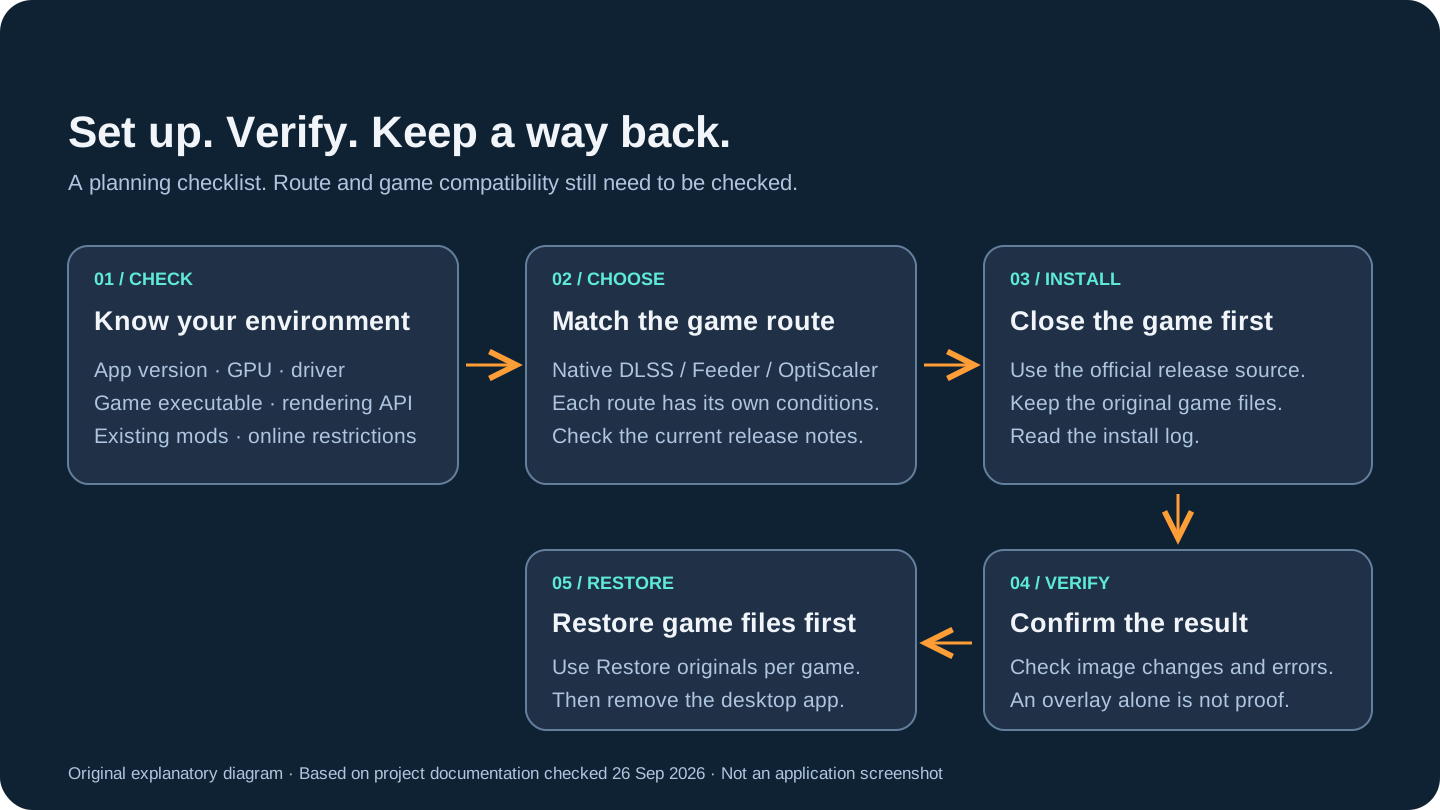
- Check your environment
Record the app version, GPU, driver, game executable and rendering API. Check existing mods and online restrictions.
- Choose a matching route
Check the current release notes and the conditions for Native DLSS, Feeder or OptiScaler before choosing.
- Install with the game closed
Use the official release source, keep the original game files, and read the installation log.
- Verify the result
Check image changes and errors. A visible overlay alone does not prove that neural rendering works.
- Restore before removing
Use Restore originals for each modified game. Verify recovery before removing the desktop application.
Uninstall the application
After the games have been restored, close Swapper and its tray process. Remove an installed copy through Windows’ application-uninstall interface. For a portable copy, remove the executable from the location where you saved it after it has closed.
Keep any diagnostics or settings you still need while verifying the outcome. Review leftover application data deliberately rather than deleting broad system folders. Only remove files you can trace to this installation; other game files and mods can also contain “DLSS” in their names.
If you already removed Swapper
The maintainer describes reinstalling the application and using surviving game backups to restore. Obtain the application from the official release source, preferably v2.2.9 or later for the restore fix above, select the same game folder, and inspect its restore state. Do not overwrite or remove surviving backups just to clear a warning.
If the backup is missing, stop guessing which DLLs were original. Compare the installation record and the game’s own files. A store’s verify-files operation can recover official game files, but may leave additional mod files in the directory. Identify those by their installation source; indiscriminate DLL deletion can remove legitimate game files or unrelated mods.
Confirm recovery and choose the next step
A successful recovery means the original game starts and behaves normally, and the modifications installed by this route are no longer active. If it still crashes after restoration, follow the baseline crash checks before blaming a new Swapper installation.
If your goal was to change components rather than leave the tool, read updating Swapper and the first-use procedure. Keep restoration available throughout that process.
광고
관련 글
DLSS 5 Autopilot Guide: Routes, Setup, Safety and Undo
알아보기
DLSS 5 Autopilot picks one of eight routes per game, installs DLSS 5, then reads the logs to tell you whether it ran. One exe, no admin. Setup, safety and undo.
DLSS 5 Manager Guide: Install, Live Flow, Safety and Undo
알아보기
DLSS 5 Manager by NODIX-TECH installs DLSS 5, ReShade and OptiScaler per game and adds Live Flow for any borderless window. How to install, use and undo it.
DLSS 5 One Click (DLSS5oneclick): Setup, Routes and Safety
알아보기
DLSS5oneclick sets up DLSS 5 in DirectX 11 and 12 games in one click: it picks the setup, writes cheaper settings and refuses anti-cheat games. How to use it.